| 1 | --- |
| 2 | title: "Resizing IPFS Images with Pinata’s Image Optimization Tools" |
| 3 | publishDate: "23 June 2022" |
| 4 | description: "Learn how to use Pinata's Dedicated Gateway image optimization tools" |
| 5 | tags: ["web3", "ipfs", "tutorials", "web development"] |
| 6 | ogImage: "https://miro.medium.com/v2/resize:fit:4800/format:webp/1*Tp42Ey9Uvdb6njsaXHBOTA.jpeg" |
| 7 | --- |
| 8 | |
| 9 | import medium from "../../assets/medium.png" |
| 10 | import OutLinkButton from "../../components/OutLinkButton.astro" |
| 11 | |
| 12 | <OutLinkButton link="https://medium.com/pinata/resizing-ipfs-images-with-pinatas-image-optimization-tools-fb381bee58aa" site="Medium" image={medium} /> |
| 13 | |
| 14 | |
| 15 | If you’re a developer in the NFT space, you have probably had to fetch IPFS content before, and depending what tools you use the experience is varied. Using a local IPFS node is not very practical or fast, and using a public gateway can be risky due to congestion. Dedicated Gateways on the other hand are much faster, and are great for app development. But what if you have to fetch an entire NFT project through IPFS? That could be 10,000 images at 5Mb each, awful for web page optimization, and you have to load every. single. one. How is that gonna work? And then what happens when you have another NFT project? |
| 16 | |
| 17 | Pinata’s [Dedicated Gateways](https://docs.pinata.cloud/gateways/dedicated-gateways) already have a blazing fast global CDN (content delivery network) that caches content on the first load, so already you’re off to a good start, but that’s still a lot of data to pull through a webpage. With the rollout of our new pricing plan and features, we’ve released a new tool for everyone: **Pinata Image Optimization.** |
| 18 | |
| 19 | Built on top of Pinata’s Dedicated Gateways, Pinata Image Optimization allows you to resize images on the fly with URL queries, all through your own gateway. Seriously. For faster web pages and reduced bandwidth, all you have to do is add a few text characters to the end of your image link. Let’s go through how it works with an example to show how you can use it to speed up your projects. |
| 20 | |
| 21 | ## How To Use Pinata Image Optimization |
| 22 | |
| 23 | Image Optimization works by adding queries to the end of our Dedicated Gateway urls. Here’s an example of a basic dedicated gateway url: |
| 24 | |
| 25 | ``` |
| 26 | https://stevedsimkins.mypinata.cloud/ipfs/{CID} |
| 27 | ``` |
| 28 | |
| 29 | The CID is the content identifier and [how we stream IPFS content](https://docs.pinata.cloud/gateways/retrieving-content). Just for our example, I have a CID of an image I shot out west and uploaded to Pinata! |
| 30 | |
| 31 | ``` |
| 32 | QmfKsRfqkWYuShSMDghMpLt8SQnWyPhDaEe8JUauM8E7Uz |
| 33 | ``` |
| 34 | |
| 35 | Now if we add this file to our gateway, we get this: |
| 36 | |
| 37 | ``` |
| 38 | https://stevedsimkins.mypinata.cloud/ipfs/QmfKsRfqkWYuShSMDghMpLt8SQnWyPhDaEe8JUauM8E7Uz/ |
| 39 | ``` |
| 40 | |
| 41 | If you click that link you’ll see our image. If that link took a few seconds to load, there’s a reason for that: it’s huge. Shot on an old medium format film camera and scanned at high resolution, this picture of the Badlands National Park is 10,000 x 10,000 pixels, coming in at around 38Mb. For context, your standard web images are under 300K. |
| 42 | |
| 43 | While the dedicated gateway uses a global CDN to cache the content on the first load, it’s still a lot to load. Most websites are gonna struggle using this image, but if you’re building something like Foundation or SuperRare, or any project that relies on a lot of images, you might not want to give up that full size image. And you certainly don’t want to take the time resizing them one by one. |
| 44 | |
| 45 | And that’s where our tool comes in. Let’s see Pinata Image Optimization in action. |
| 46 | |
| 47 | To add on the image resizing query to the url, we simply need to add a “?” with the query itself. Here’s an example of changing the width of an image to 1080 pixels: |
| 48 | |
| 49 | ``` |
| 50 | ?img-width=1080 |
| 51 | ``` |
| 52 | |
| 53 | If we want to change the height too, we just need to use an ampersand (&) to add on another query: |
| 54 | |
| 55 | ``` |
| 56 | ?img-width=1080&img-height=1080 |
| 57 | ``` |
| 58 | |
| 59 | Now all we need to do is add this little snippet to our previous image url: |
| 60 | |
| 61 | ``` |
| 62 | https://stevedsimkins.mypinata.cloud/ipfs/QmfKsRfqkWYuShSMDghMpLt8SQnWyPhDaEe8JUauM8E7Uz?img-width=1080&img-width=1080 |
| 63 | ``` |
| 64 | |
| 65 | Check that out. Instead of being a 10,000x10,000 resolution, it’s now 1080x1080 and only 266Kb. Doesn’t get any simpler than that — and this is only the beginning of what this tool can do. Here’s a small list of other things you can do: |
| 66 | |
| 67 | * DPR (Device Pixel Ratio) |
| 68 | * Image Fit — for scaling down, image positions and more! |
| 69 | * Image Quality — Set a scale from 1–100 to easily reduce a high quality image |
| 70 | * Auto Image Formatting — Use Webp where supported, but then fall back to jpeg or png |
| 71 | * Animation Still — Turn a gif into a still image |
| 72 | * On Error Redirect — Redirect to a different image if there is a problem |
| 73 | * Metadata Controls — Control what EXIF data is revealed with the image |
| 74 | |
| 75 | Pinata Image Resizing really gives you control as a developer in the NFT space to handle IPFS images with ease. We highly recommend checking out our [developer docs](https://docs.pinata.cloud) to see them all. |
| 76 | |
| 77 | To really understand what’s possible with this tool, let’s look at a real world example. |
| 78 | |
| 79 | ## Displaying a 10K PFP Project |
| 80 | |
| 81 | When it comes to NFT projects, right now the classic 10,000 PFP project is the industry standard — it’s what everyone is trying to create. But if you’re an NFT marketplace trying to get up and running, you’re almost certainly going to run into some problems if you have to load an entire 10K project on a single webpage. The speed is going to suffer greatly, especially if you are pulling full sized large images from IPFS. |
| 82 | |
| 83 | In our example, we’ll make a simple app that displays more images I took out West in the Badlands. First thing we need to do is spin up a React app by running the following in our terminal: |
| 84 | |
| 85 | ```bash |
| 86 | npx create-react-app ipfs-image-optimization |
| 87 | |
| 88 | cd ipfs-image-optimization && npm start |
| 89 | ``` |
| 90 | |
| 91 | Then we’ll delete the CSS files and boilerplate in App.js. We’ll also add in some structure for our image grid. |
| 92 | |
| 93 | ```javascript |
| 94 | function App() { |
| 95 | return ( |
| 96 | <div className="App"> |
| 97 | <div className="grid"> |
| 98 | |
| 99 | </div> |
| 100 | </div> |
| 101 | ); |
| 102 | } |
| 103 | export default App; |
| 104 | ``` |
| 105 | |
| 106 | Usually a PFP project will be in a single folder, and each file inside will be named in sequential order such as “1.png, 2.png, 3.png,” etc. This makes our base URL very simple. The only thing that will be changing will be the ID of the image, so it looks like this: |
| 107 | |
| 108 | ``` |
| 109 | https://stevedsimkins.mypinata.cloud/ipfs/QmTwDNr6LyRzW8H3XorFDArfKEH3GRV1SkF6bAEBF3P4GJ/${id}.jpg?img-width=1080&img-height=1080 |
| 110 | ``` |
| 111 | |
| 112 | Let’s break this down again so we know what’s going on. |
| 113 | |
| 114 | We have our gateway url ```https://stevedsimkins.mypinata.cloud/ipfs/```, then we have our CID ```QmTwDNr6LyRzW8H3XorFDArfKEH3GRV1SkF6bAEBF3P4GJ```, then our dynamic image id ```${id}.jpg``` and finally our image optimization ```?img-width=1080&img-height=1080```. Of course not all PFP projects are this simple, but with this formatting you can pass in multiple parameters with objects to adjust to your needs. |
| 115 | |
| 116 | Our image folder only has 8 images, therefore we just need a simple for loop to generate an array that will hold the numbers 1 through 8. That way we can access it later to generate our image components. Just start with an empty array, then push the numbers into it with the for loop. |
| 117 | |
| 118 | ```javascript |
| 119 | let imageIds = [] |
| 120 | for (let id = 1; id <= 8; id++){ |
| 121 | imageIds.push(id) |
| 122 | } |
| 123 | ``` |
| 124 | |
| 125 | Now the fun part: generating the images! We’ll take our imageId array and map over it. |
| 126 | |
| 127 | ```javascript |
| 128 | {imageIds.map((id) => { |
| 129 | |
| 130 | })} |
| 131 | ``` |
| 132 | |
| 133 | Then we’ll declare our base URL with our dynamic image ID, as well as a name for the alt text later. |
| 134 | |
| 135 | ```javascript |
| 136 | {imageIds.map((id) => { |
| 137 | let url = `https://stevedsimkins.mypinata.cloud/ipfs/QmTwDNr6LyRzW8H3XorFDArfKEH3GRV1SkF6bAEBF3P4GJ/${id}.jpg?img-width=1080&img-height=1080` |
| 138 | let name = `nft ${id}` |
| 139 | })} |
| 140 | ``` |
| 141 | |
| 142 | Finally, we just need to create a component to hold the image, using the url as the image src and the name as the image alt! |
| 143 | |
| 144 | ```javascript |
| 145 | {imageIds.map((id) => { |
| 146 | let url = `https://stevedsimkins.mypinata.cloud/ipfs/QmTwDNr6LyRzW8H3XorFDArfKEH3GRV1SkF6bAEBF3P4GJ/${id}.jpg?img-width=1080&img-height=1080` |
| 147 | let name = `nft ${id}` |
| 148 | return ( |
| 149 | <div className="image-container"> |
| 150 | <img src={url} alt={name}/> |
| 151 | </div> |
| 152 | ) |
| 153 | })} |
| 154 | ``` |
| 155 | |
| 156 | That leaves us with the final code for App.js. Add in a little CSS and we end up with a nice little image grid that loads FAST! |
| 157 | |
| 158 | ```javascript |
| 159 | import './App.css'; |
| 160 | |
| 161 | function App() { |
| 162 | |
| 163 | let imageIds = [] |
| 164 | |
| 165 | for (let id = 1; id <= 8; id++){ |
| 166 | imageIds.push(id) |
| 167 | } |
| 168 | |
| 169 | return ( |
| 170 | <div className="App"> |
| 171 | <div className="grid"> |
| 172 | {imageIds.map((id) => { |
| 173 | let url = `https://stevedsimkins.mypinata.cloud/ipfs/QmTwDNr6LyRzW8H3XorFDArfKEH3GRV1SkF6bAEBF3P4GJ/${id}.jpg?img-width=1080&img-height=1080` |
| 174 | let name = `nft ${id}` |
| 175 | |
| 176 | return ( |
| 177 | <div className="image-container"> |
| 178 | <img src={url} alt={name}/> |
| 179 | </div> |
| 180 | ) |
| 181 | })} |
| 182 | </div> |
| 183 | </div> |
| 184 | ); |
| 185 | } |
| 186 | |
| 187 | export default App; |
| 188 | ``` |
| 189 | |
| 190 | 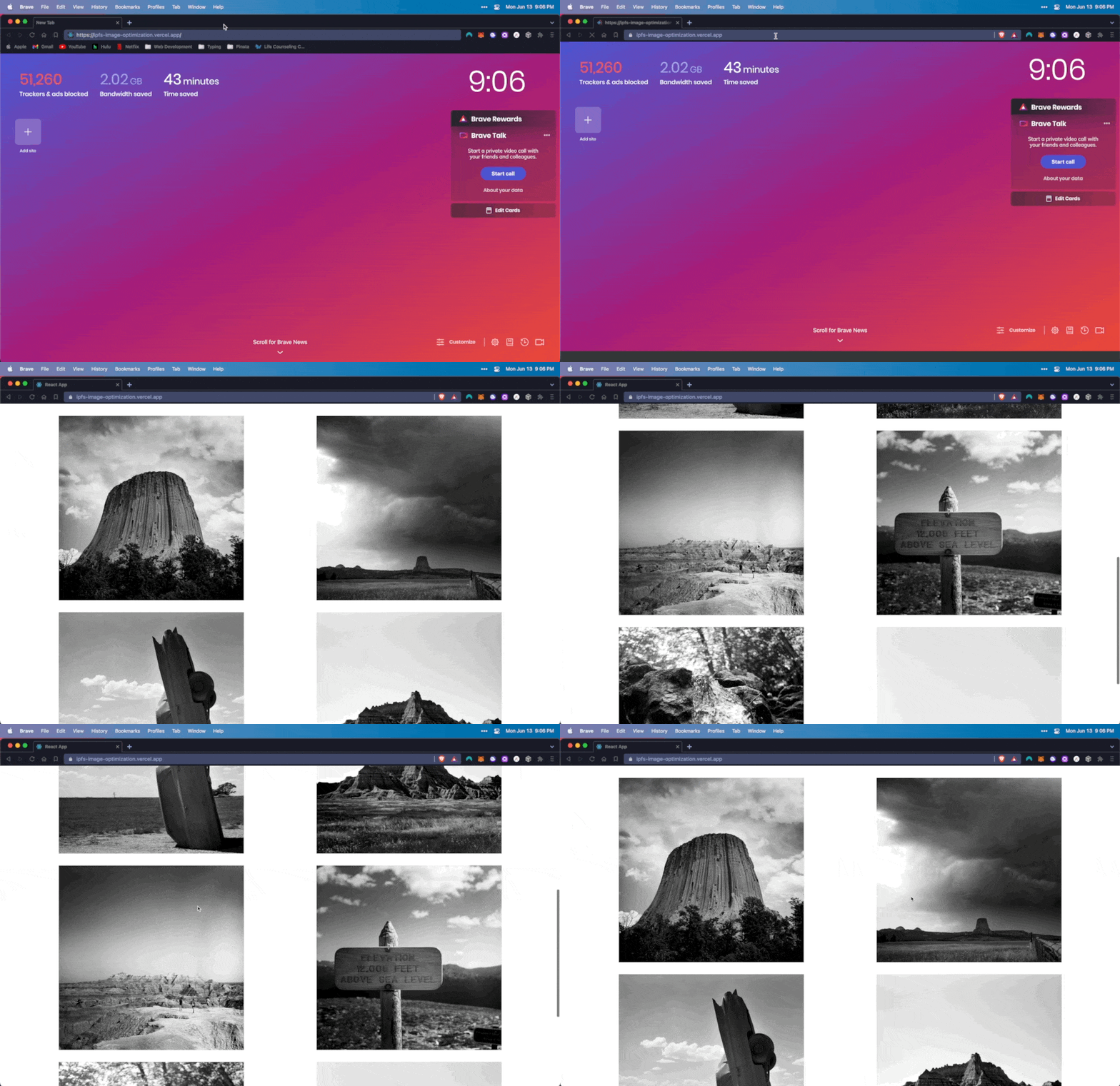 |
| 191 | |
| 192 | Keep in mind, each one of these images is 10,000 x 10,000 resolution with over 35MB per file, and thanks to our dedicated gateway we loaded them like it was nothing. All of them dynamically resized to 1080 x 1080, still a decent size and high enough quality for most projects. |
| 193 | |
| 194 | Now you’ve got an idea how IPFS Image Optimization with Pinata’s Dedicated Gateways can help streamline your NFT development, especially for marketplaces and other platforms that need to stream lots of IPFS content. Here are a few more articles that might be helpful as you’re building: |
| 195 | |
| 196 | [How To Create an NFT Marketplace on Flow With IPFS](https://medium.com/pinata/how-to-create-an-nft-marketplace-on-flow-with-ipfs-a162a1aeb426) |
| 197 | |
| 198 | [How To Prevent NFT Trait Sniping In Your PFP Project](https://medium.com/pinata/how-to-prevent-nft-trait-sniping-in-your-pfp-project-506f17ff07d6) |
| 199 | |
| 200 | [How to Offset Your NFT Project Carbon Emissions with Aerial](https://medium.com/pinata/how-to-offset-your-nft-project-carbon-emissions-with-aerial-b5b4b95faba0) |
| 201 | |
| 202 | And if you haven’t heard, we’ve just released a ton of new features like token gating content and 4k video streaming, putting even more power into the hands of creators. Be sure to join our [Discord community](https://discord.gg/pinata) to connect with other creators and see all the amazing projects being built with Pinata. Happy pinning! |