| 1 | # Cloudflare Pages |
| 2 | |
| 3 | A great way to host your bhvr client, especially since your server can be hosted with Cloudflare Workers. There are two primary ways you can host your client through Pages: |
| 4 | - Git Integration |
| 5 | - Manual Upload |
| 6 | |
| 7 | ::::note |
| 8 | Once you have chosen one of these methods you will not be able to switch between the two! Doing so will require deleting the site and starting over. |
| 9 | :::: |
| 10 | |
| 11 | ## Git Integration |
| 12 | |
| 13 | ::::steps |
| 14 | |
| 15 | ### Create a New Pages Project |
| 16 | |
| 17 | Login to your Cloudflare account and then from the sidebar select `Compute (Workers)` and click the `Create` button in the top right. Select the pages tab and then select the Git repository option. |
| 18 | |
| 19 | ### Setup Your Project |
| 20 | |
| 21 | Connect your choice of Git account and then select the repo for your bhvr project. Once select make sure you have the following items setup accordingly under the build settings: |
| 22 | |
| 23 | - Framework Preset: `React (Vite)` |
| 24 | - Build command: `bun install && bun run build` |
| 25 | - Build output directory: `dist` |
| 26 | - Root directory (advanced): `client` |
| 27 | - Environment Variables: `BUN_VERSION=1.2.14` (use the latest version) |
| 28 | |
| 29 | 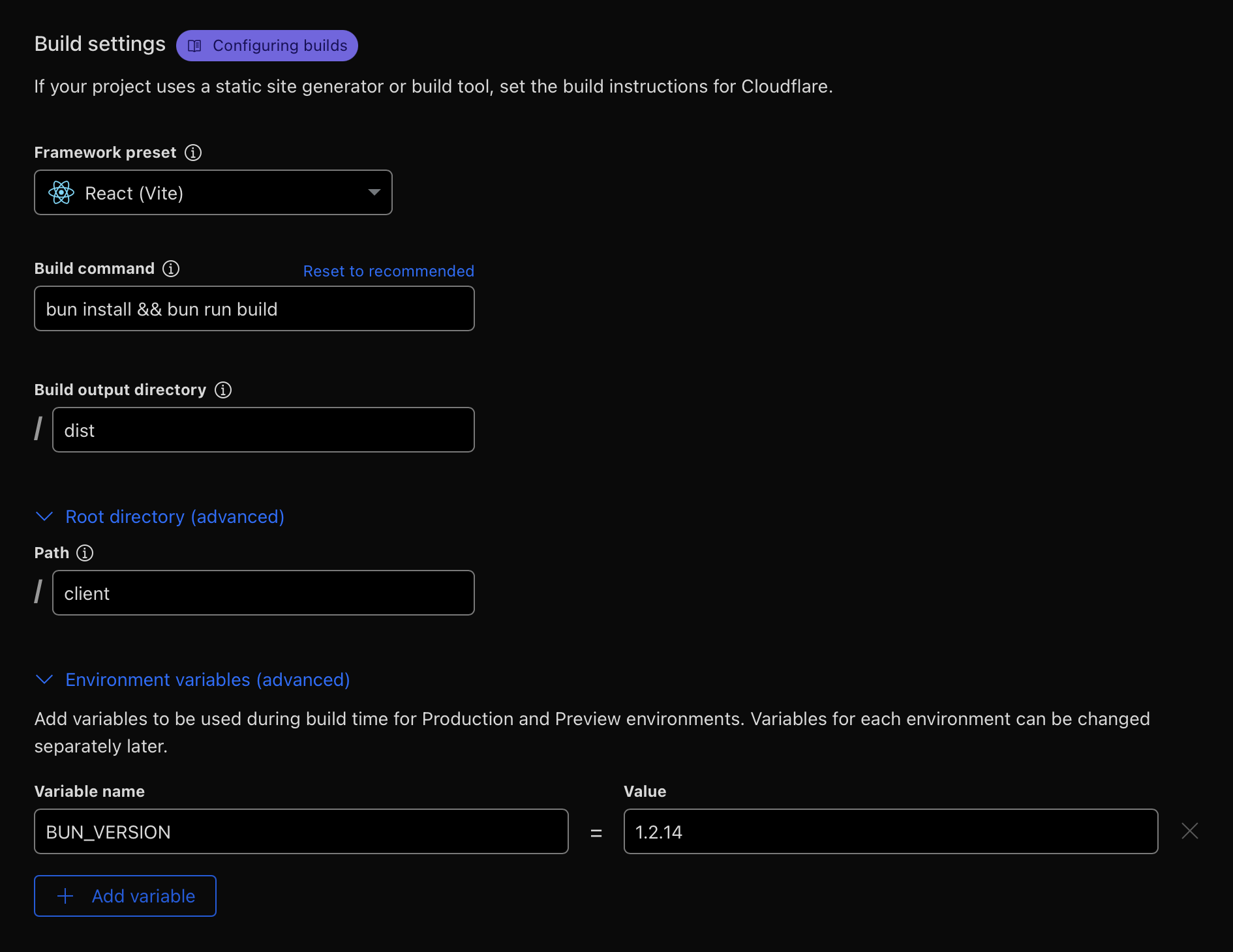 |
| 30 | |
| 31 | ### Save and Deploy |
| 32 | |
| 33 | Once you have those settings entered you can just click the "Save and Deploy" button in the bottom right, and you're done! Anytime you push a new commit it will deploy a new version of the site, including previews for branches. |
| 34 | |
| 35 | ::::tip |
| 36 | [Check out the Cloudflare Docs for more info and tips](https://developers.cloudflare.com/pages/get-started/git-integration/) |
| 37 | :::: |
| 38 | |
| 39 | |
| 40 | ## Direct Upload |
| 41 | |
| 42 | ::::steps |
| 43 | |
| 44 | ### Login to Cloudlfare |
| 45 | |
| 46 | Using the `wrangler` CLI login to your Cloudflare account to authorize it |
| 47 | |
| 48 | ```bash [!terminal] |
| 49 | bunx wrangler login |
| 50 | ``` |
| 51 | |
| 52 | ### Setup Project |
| 53 | |
| 54 | First make sure you have built the client |
| 55 | |
| 56 | ```bash [!terminal] |
| 57 | bun run build |
| 58 | ``` |
| 59 | |
| 60 | Then use the `wrangler` CLI to create a new empty project in Cloudflare |
| 61 | |
| 62 | ```bash [!terminal] |
| 63 | bunx wrangler pages project create |
| 64 | ``` |
| 65 | |
| 66 | ### Deploy |
| 67 | |
| 68 | Lastly run the following command to directly upload the `dist` build folder of your `client` |
| 69 | |
| 70 | ```bash [!terminal] |
| 71 | bunx wrangler pages deploy client/dist |
| 72 | ``` |
| 73 | |
| 74 | You can automate this into a script by adding it to your root `package.json` |
| 75 | |
| 76 | ```json |
| 77 | { |
| 78 | "scripts": { |
| 79 | // Other scripts |
| 80 | "deploy:client": "bun run build:client && bunx wrangler pages deploy client/dist" |
| 81 | } |
| 82 | } |
| 83 | ``` |
| 84 | |
| 85 | ::::tip |
| 86 | [Check out the Cloudflare Docs for more info and tips](https://developers.cloudflare.com/pages/get-started/direct-upload/) |
| 87 | :::: |